VBR 13.1 - security changes administrators will notice day to day
MFA for permission changes, HMC accounts, Security Officer access recovery, four-eyes, SIEM events, PQC, REST API, and port 6162 after an upgrade.
Hello everyone,
After the piece about Remote BMR for Windows, I am returning to Veeam administration itself. This time I am looking at permissions, MFA, and approving changes. The VSA is a place where it is particularly easy to get tripped up: there are accounts in HMC, roles in VBR, and two mechanisms that require another person’s involvement.
I focus mainly on accounts and continuity of access here. Further down, I have gathered changes related to auditing, Malware Detection, and ports. Additional MFA in Users and Roles and the improvements described later are new in 13.1. Security Officer, recovery token, and the separation of HMC roles did not first appear in this version - I cover them because it is worth organizing this area when deploying or upgrading a VSA as well.
👤 Permission changes require MFA confirmation again
When MFA is enabled, changes in the VBR server’s Users and Roles now require additional confirmation. This is where access to the entire backup environment is granted. Do not confuse this setting with the separate Users and Roles page in HMC.
This does not replace organizational controls. I still check who made the change, why, and whether the granted permissions match the work being done. MFA verifies the identity of the signed-in person; it does not assess whether the decision was justified.
After an upgrade, it is worth making a controlled change with a test account or a role that cannot affect production and confirming the entire flow. A successful MFA sign-in alone does not prove that the additional confirmation also works in Users and Roles.
🐧 Local VSA accounts: HMC and VBR are two permission layers
With VSA, there is also local appliance account management in Veeam Host Management Console. The Add New User wizard walks through an HMC role, MFA settings and - if the selected account type permits it - a VBR role and whether the account is a service account.
Several rules need attention. One account can have only one HMC role. A Host Administrator can receive only the Backup Administrator role in VBR. Security Officer and Service Account accounts cannot be given a VBR role. A Security Officer cannot access TUI. A User or Service Account type is not used to sign in to HMC. An account’s name cannot be changed after it is created either.
MFA cannot be disabled when adding a new Security Officer in HMC. There is an important exception during initial appliance configuration: if MFA was disabled then, the SO’s first-login wizard skips its registration. When reviewing SO accounts, I therefore also check their MFA status. This exception is described in the SO first-login procedure.
MFA in HMC and MFA in VBR are enabled separately, but a Host Administrator uses one shared code. The documentation says that, during an upgrade to 13.1, the previously separate HMC and VBR codes are combined; after the upgrade, the code configured in HMC is used. I therefore check both settings during an access review, not just whether the phone app generates a code.
For a new account, I also complete the first sign-in and required password change before connecting it to a script. I save the current password in the Vault and check VBR access separately. In my latest test, the account was already active in HMC, but PowerShell could connect only after I completed the password change and updated the entry in the vault.
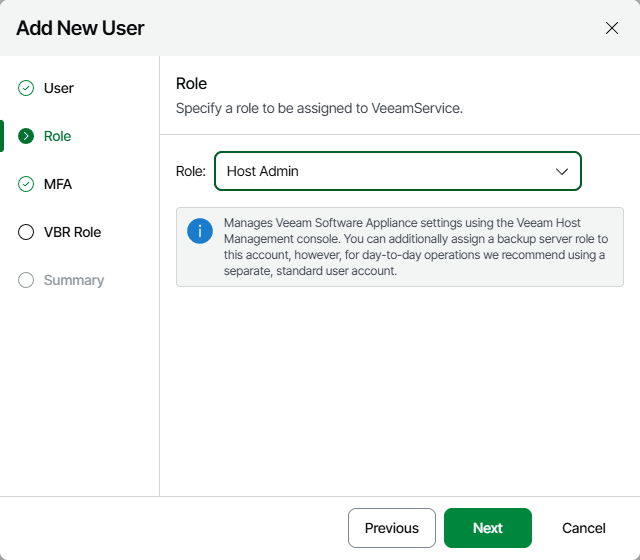
HMC separates the appliance administration role from permissions assigned later in VBR.
The wizard also lets you mark an account as a VBR service account. This setting is intended for non-interactive connections used by applications and components. Selecting it disables MFA for that account’s VBR sign-in, so I do not use it as a convenient exception for an ordinary administrator account.
The names can be confusing: the Service Account role in HMC and the VBR service account option are two different settings. I checked this in the wizard on build 13.1.1.18. After selecting the Service Account role, the wizard went straight to the summary without MFA or VBR Role steps. The summary showed an empty VBR role and VBR service account set to No. With the User role, the wizard showed VBR permission choices and a separate checkbox that disables MFA for VBR sign-in.
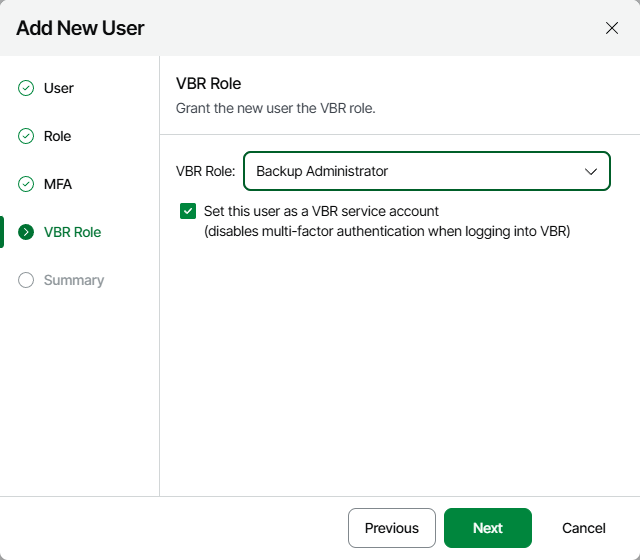
The VBR role and service-account purpose are selected in a separate wizard step.
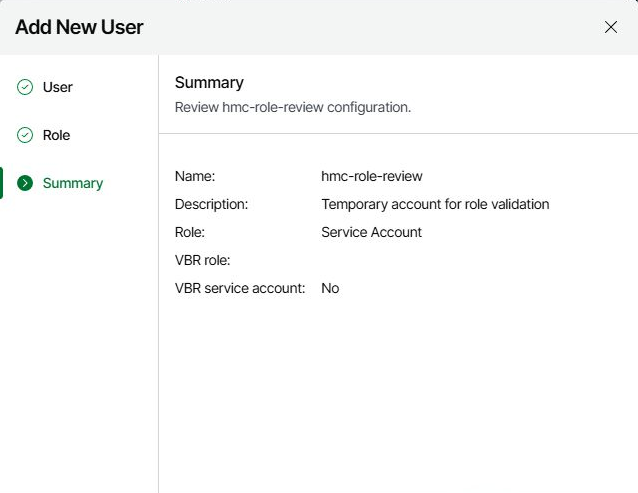
HMC Service Account configuration summary. The name hmc-role-review was used in separate wizard runs for different roles. This screenshot shows the summary before the account was saved.
While testing this mechanism, I encountered a limitation when four-eyes authorization was enabled in VBR. I created an account with the Host Administrator role in HMC, the Backup Administrator role in VBR, and VBR service account selected. The wizard let me reach the summary, but after I selected Finish, it returned this error: Unable to create user while four-eyes authorization is enabled. I did not receive confirmation that the account had been created.
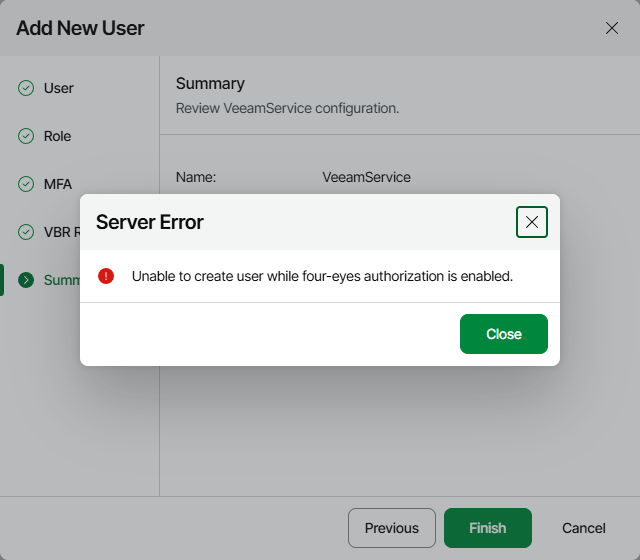
Wizard error for the role combination described above. The Pending approvals queue needs to be checked separately.
This should be taken into account during deployment. It is best to prepare accounts needed for administration and integrations before enabling four-eyes. If the control is already active in the environment, I do not disable it ad hoc while creating a user. I plan the change first, arrange for a second administrator to participate, record the starting state, and then recheck roles, MFA, and the four-eyes state.
I also tested the other roles on 13.1.1.18, with four-eyes confirmed as enabled. The results were not the same for every role:
| HMC account | VBR setting | Test result |
|---|---|---|
| User | None, without the VBR service account flag | Account created, status Active |
| Service Account | No VBR role | Account created, status Active |
| Security Officer | No VBR role, mandatory MFA | Request sent to an existing SO; after approval, account Active |
| Host Administrator | Backup Administrator, without the VBR service account flag | Same error about four-eyes being enabled |
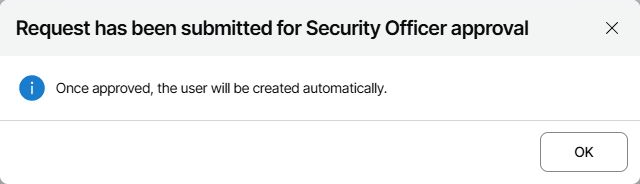
For a Security Officer, HMC submitted an approval request. After an existing SO approved it, the account appeared in the list; the approval was also visible in HMC Events.
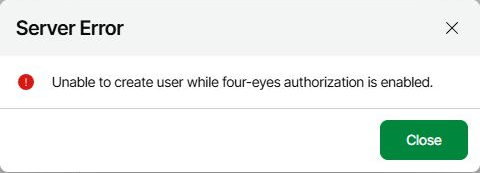
A second Host Administrator attempt, this time without the VBR service account flag, ended with the same message.
Unchecking VBR service account therefore did not resolve the Host Administrator creation issue. At the same time, a regular User without VBR permissions and an HMC Service Account were created successfully. I would not describe this as a general block on creating appliance accounts.
Disabling four-eyes also requires another person. After one Backup Administrator unchecked the option, VBR created a Disable four-eyes authorization request. The setting changed only after a second Backup Administrator approved the request in the VBR console. This is a useful safeguard, but it also needs to be considered in the maintenance window. Access to HMC and one administrator account are not enough.

The setting changed only after approval by a second administrator. After the test, the setting should be restored and checked again.
To determine whether the active four-eyes authorization was the cause of the block, I completed the entire scenario. After the approved disablement of four-eyes, I retried creating the Host Administrator + Backup Administrator account. This time the account was created, was active in HMC, had MFA enabled, and appeared in VBR as a Backup Administrator. I then enabled four-eyes again and confirmed it remained enabled after reopening the Authorization window.
The first password I prepared did not pass the DISA STIG policy because it contained more than four consecutive characters from the same character class. A password generator must therefore also account for the limit on consecutive characters of the same class.

After four-eyes was disabled, the same role combination was saved successfully. This screenshot is from the lab environment only.

Final state: additional approval is once again required for sensitive operations.
I also noticed something important for auditing: an Create user entry appeared in HMC Events for the rejected Host Administrator attempt as well. I therefore check the wizard result and whether the account is present in the list, not just the event name. The results apply to this build and these specific settings. The new SO’s Active and MFA Enabled statuses alone were not enough for my test - I checked the first sign-in and recovery procedure separately.
It is also important to distinguish the two approval mechanisms: a Security Officer in HMC approves certain appliance operations, while four-eyes in VBR uses Backup Administrator or Security Administrator permissions. Security Officer and Security Administrator are different roles. A second SO account does not automatically replace a second person with the appropriate VBR role. The Authorization window shown in the screenshots uses the name Security Officer. This differs from the VBR 13 documentation, which specifies Security Administrator. In practice, I check the role assigned to the user in VBR.
🧯 Security Officer: a phone cannot be the only recovery plan
A Security Officer in VSA is not a spare administrator account. A Host Administrator makes technical changes, while a Security Officer approves some operations and protects separation of duties. Losing access to this account can therefore block not only sign-in but also a change that requires another person’s approval.
I treat the Security Officer’s first sign-in as a separate deployment procedure. The wizard walks through changing the password, registering MFA, saving a recovery token, and setting a passphrase that protects sensitive data in the encrypted configuration backup. The earlier exception for MFA during initial configuration applies here. Before signing in, I prepare a TOTP app and unlock the Vault, so there is no need to look for a place to save the token halfway through the operation.
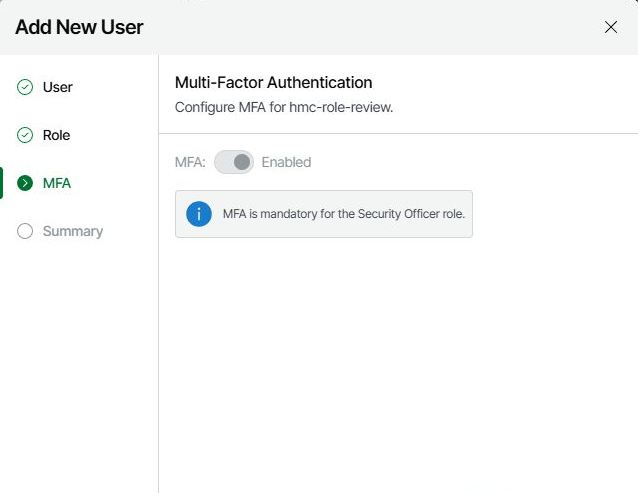
When adding another SO, the wizard displays MFA is mandatory for the Security Officer role, and the toggle remains disabled. I checked MFA registration and account recovery separately.
Afterward, it is worth signing out and checking MFA in a new session. The recovery token should be retrievable from the company password vault without copying it to notes, documentation, or screenshots. I then test account recovery with the saved token.
Configuration backup also requires SO involvement
With VSA, I also make sure of the configuration backup passphrase set by the Security Officer. This is a separate part of the procedure, in addition to the sign-in password, MFA, and recovery token. Enabling backup encryption in VBR does not replace this step: without the passphrase, a job may fail while preparing the configuration for encryption.
The Security Officer manages this passphrase under HMC > Configuration > Configuration Backup. After it is set, we save it in a properly protected Vault and run a configuration backup, checking the result of the entire session. Only a successful run is a basis for further recovery tests. The backup file itself must also be accessible outside the server whose failure we are considering.
If the Security Officer forgets the password, the account is locked after failed sign-ins, or access to the MFA app is lost, the supported path is Forgot password? > I have a password recovery token. After the token is used, the wizard requires a new password, MFA registration again, and issues a new recovery token. I treat this as a single operation in practice: the new token is saved in the Vault, and the old one is no longer used.
I tested the full flow on an additional SO account in VSA 13.1.1.18. The token saved during the initial setup was accepted, the account went through password change and MFA registration again, and the new token replaced the previous one in the Vault. I signed in again with MFA afterward. HMC Events separately recorded token authorization, the new-password check, and the password reset. I checked the subsequent MFA sign-in separately.

The history contains no token value or MFA data. It shows token authorization and a password reset. The MFA sign-in visible in this screenshot is before account recovery; this image does not show the later verification sign-in.
Be careful with LiveOS here. KB4761 can emergency-unlock a local account or change its password, but such a reset does not remove MFA. A Security Officer can recover MFA only with a recovery token. If both the MFA app and token are lost, Veeam explicitly warns that the account may be unrecoverable and access permanently lost.
How many Security Officers?
In a managed environment, I do not want this role to depend on one person and one phone. My practical recommendation is at least two named Security Officer accounts, each assigned to a different person, with a separate password and their own MFA registration. This is not a vendor minimum; it is a way to eliminate a single point of failure.
A Host Administrator creates a new Security Officer account, and an existing Security Officer approves the request. The default veeamso account cannot be deleted, but that is not a reason for everyone to use one shared password and the same TOTP secret. A shared account blurs accountability and means that losing one device affects the entire approval process.
The authenticator app also needs a decision
Veeam does not require a specific authenticator app. It registers a code in a TOTP app, so the choice depends on organizational policy. Synchronization improves availability, but also increases the number of devices and accounts whose security must be managed.
Some common options:
- Google Authenticator runs on Android and iOS. When signed in to a Google account, it syncs entries between devices. It can also be used without an account, with manual entry transfer by QR code. With sync enabled, access to the Google account becomes part of the MFA recovery process.
- Microsoft Authenticator can back up TOTP accounts to the cloud. Restore works within the same platform: Android to Android or iOS to iOS. Moving to a phone with a different operating system therefore requires planning MFA transfer in advance.
- Proton Authenticator offers optional synchronization through a Proton account with end-to-end encryption, including between a phone and a computer. It is a separate app from Proton Pass. With this option, an independent method for recovering access to the Proton account is also needed.
- Aegis Authenticator is an open-source Android app. It can keep entries in a password-protected vault and create encrypted backups and exports. In this case, I mainly make sure that a current backup is stored outside the phone and that its password is available in an emergency.
Storing the sign-in password and TOTP secret in the same password manager weakens separation of the factors. For a Security Officer account, I prefer the password, MFA, and recovery token to be accessible without depending on one person and one mechanism.
If I enable synchronization, the account protecting it needs strong authentication, and devices should be encrypted and capable of being locked or wiped remotely. I also do not scan one QR code onto several administrators’ phones. Continuity comes from separate Security Officer accounts, not a shared MFA secret.
Regardless of the selected app, I also run a recovery drill: another authorized Security Officer signs in with their own account, the recovery token can be retrieved from the appropriate Vault, and the organization knows who can access it and how that access is recorded.
🧾 Security & Compliance Analyzer reaches Windows Event Log
On a Windows VBR server, results and status changes from Security & Compliance Analyzer can be published to Windows Event Log. This means monitoring does not need to be built entirely around the Veeam console. Events can be collected through Windows Event Forwarding or the SIEM tool already used by the organization.
This improvement applies to VBR on Windows. VSA records events in its Linux environment, so an existing procedure based on Windows Event Log cannot be carried over to the appliance without changing how data is collected.
I can also run the analyzer through PowerShell without opening the graphical console. After connecting to VBR, I run:
$scan = Start-VBRSecurityComplianceAnalyzer -Wait
Get-VBRSecurityComplianceAnalyzerResults -Session $scan
I checked this flow on VSA. Passing the session to the second command lets me read results from the scan that just ran. This is useful for gathering evidence after an upgrade, but does not yet confirm that events reached the SIEM. I verify receipt on the monitoring side separately.
Before enabling production alerts, I check three things: which events are actually generated, which should be alerts and which are informational, and how long their history is retained. Otherwise, the SIEM will quickly collect a lot of data with little value.
On VSA, I add a syslog receiver under Configuration > Settings > Event Forwarding > Syslog Servers. The wizard supports UDP, TCP, and TLS; after selecting TLS, it suggests port 6514. I agree on the port and transport with the receiver configuration. Adding an address alone does not confirm event delivery or correct parsing by the SIEM.
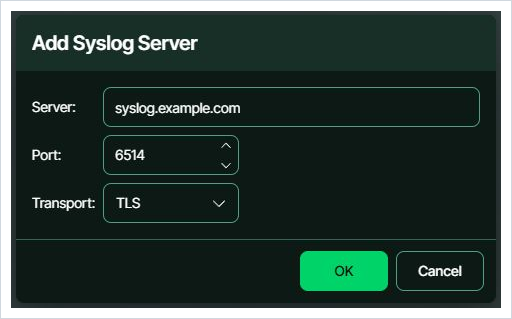
Syslog receiver wizard showing the example address syslog.example.com and TLS transport. The configuration was not saved.
🔑 Encryption password changes leave a clearer record
Changing the backup encryption password is now recorded in the relevant job session and generates an event. It is a small change, but it matters during key rotation or incident analysis. It is easier to establish when the setting was changed and which job it was associated with.
I would not change the password on an important chain just to see the event. The safest way to check this is during a planned rotation or on a test job, then confirm that the information reached the monitoring system in use.
🛡️ Malware Detection is easier to manage day to day
Version 13.1 also improves day-to-day work with Malware Detection. Entropy-based events include more information about files that triggered detection. Exclusions can be configured separately for a specific machine, and Web UI covers event and exclusion management as well as detection analysis.
In Web UI, I go to Configuration > Malware Detection. One page provides entropy analysis, file activity, Indicators of Compromise, and definition updates. Further down, Configure exclusions opens settings for selected machines. For a false positive, I start with the specific computer and detection type instead of immediately disabling analysis for the entire environment.
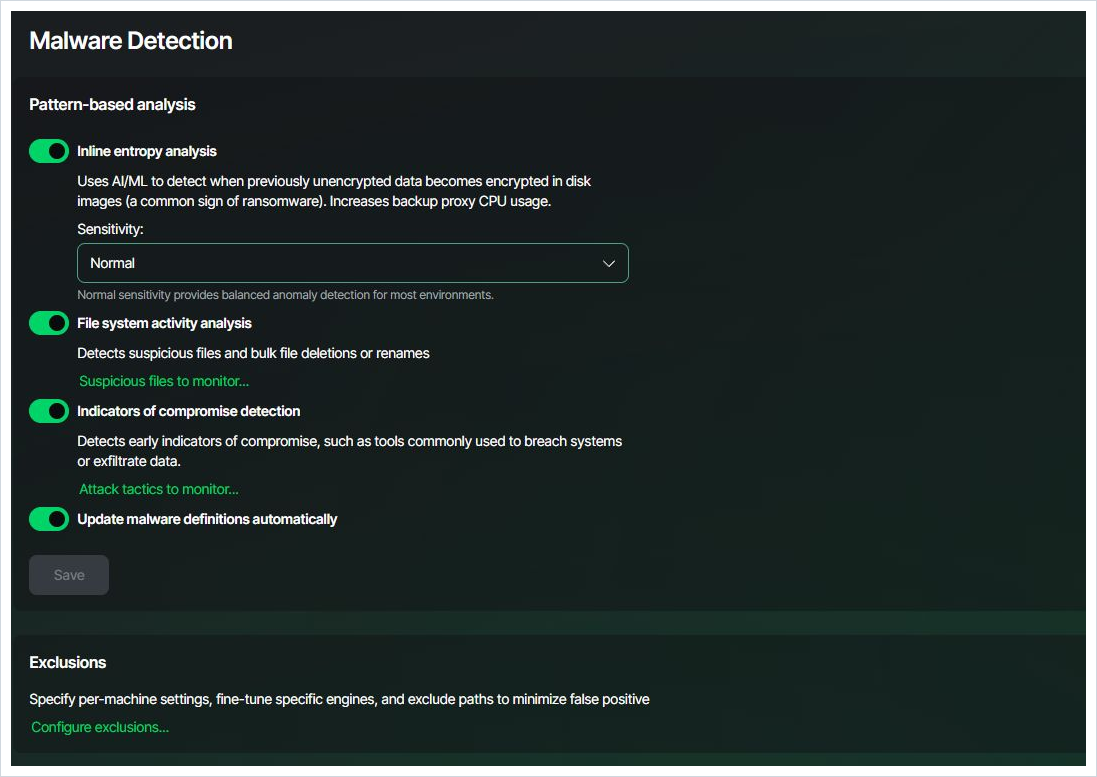
Malware Detection settings in 13.1.1.18: available analysis methods and access to machine exclusions.
The vendor also reports a substantial reduction in memory usage during guest file system index analysis - in some cases by as much as 90%. I do not treat this number as a guarantee. In a larger environment, it is best to compare RAM usage and analysis time for the same group of machines before and after the upgrade.
🌐 Web UI, REST API, and integrations after an upgrade
For a Windows VBR installation, the Web UI port can be set during deployment or changed later. The REST API now also responds on port 443. Port 9419 remains available for compatibility with older integrations, but Veeam says it will be deprecated in a future release.
This is a good time to find scripts, monitoring systems, and integrations that still use 9419. A working endpoint on 443 will not switch them automatically. I first test the client on the new port, then change its configuration, and only at the end consider restricting the old access.
🔌 Port 6162 does not replace the entire network matrix
VBR 13.1 simplifies backup communication by using TCP 6162 as the primary port for Veeam Transport Service and Data Mover. This can reduce the number of rules between segments.
That does not mean that all existing rules can be removed after an upgrade without checking. The current port table still lists TCP 2500-3300 as a fallback range for some connections when 6162 is unavailable. Separate requirements also apply to component deployment, guest processing, vPower NFS, NDMP, tape, and specific virtualization platforms.
In practice, I first confirm traffic for the roles in use: VBR server, proxies, repositories, mount servers, gateways, agents, and hosts. Then I run a backup and the recovery tests relevant to the environment. I only restrict firewall rules on that basis.
🔐 A change administrators may barely notice: PQC
Version 13.1 introduces a hybrid FIPS and post-quantum cryptography model for connection negotiation and key exchange. AES still encrypts the data. For existing deployments, PQC is enabled without backup migration or infrastructure redesign.
The exception is strict FIPS compliance mode, which disables PQC mechanisms. This matters when documenting compliance: do not claim both enforced strict FIPS and active PQC without checking the actual configuration.
✅ What do I check after moving to 13.1?
My post-upgrade checklist currently looks like this:
- Sign in with MFA and confirm the additional prompt during a controlled change in Users and Roles.
- In VSA, review HMC accounts, assigned roles, MFA, and service accounts, and check how four-eyes affects planned changes.
- For Security Officers, check the number of named accounts, successful MFA sign-in, recovery token currency, and emergency access to the tokens.
- Run Security & Compliance Analyzer and confirm events in the monitoring system in use.
- Check retention and alert levels for events forwarded to the SIEM.
- Check Malware Detection in Web UI and review existing exclusions.
- Test REST clients on port 443 and inventory dependencies on 9419.
- Check TCP 6162 on all required paths.
- Test backup, recovery, SureBackup, guest processing, and tape jobs - only those used in the environment, of course.
- Change firewall rules only after reviewing logs and completing tests.
Not every installation uses SIEM, SAML, tape, or separate segments for every component. I therefore do not copy one checklist into every project unchanged. The core is common, but the tests must reflect the actual architecture.
💬 What have you checked in your environment?
How do you provide emergency access to the Security Officer? Do you have another person with a separate account and tested access to the recovery token? I would also like to hear about your experience creating HMC accounts with four-eyes enabled - particularly for role combinations other than the one shown above.
If you have results for specific roles or integrations, a short description without addresses or environment names is enough. It will be much more useful than simply confirming that an upgrade completed successfully.
🔗 Sources
- What’s New - Security
- VSA - Configuring Users
- VSA - Managing User Authentication
- VSA - Performing Initial Security Officer Login
- VSA - Performing Security Officer Tasks
- KB4761 - How to use Veeam Live OS ISO
- Four-Eyes Authorization
- What’s New - Malware Detection
- Security & Compliance Analyzer
- Ports - VBR User Guide
- VBR 13.1 Release Notes
- Microsoft Authenticator - back up accounts
- Google Authenticator - sync and transfer accounts
- Proton Authenticator - encryption and synchronization
- Aegis Authenticator - features and backups

Veeam, backup and recovery engineer sharing lessons from implementations, testing and production operations.