VBR 13.1: Remote Bare Metal Recovery for Windows
What Remote BMR changes for Windows recovery, which conditions must be met, and why launching the wizard does not yet prove recoverability.
Hello everyone,
I have used Bare Metal Recovery with Veeam Agent for Microsoft Windows many times: after disk failures, during hardware replacement and migration, and in recovery tests. The recovery mechanism itself is not new. What VBR 13.1 changes is who needs to be physically present at the server and where the operation is controlled from.
Since the release of 13.1, I have used Remote Bare Metal Recovery in several deployments and recovery procedure tests. It is particularly useful in distributed environments. If a branch server has a remote management controller such as iDRAC, iLO or XClarity, I can mount the ISO and conduct the recovery remotely. Without such a controller, I only need someone on site to boot the computer from media prepared in advance.
What VBR 13.1 adds
After Veeam Recovery Environment starts, the computer registers with VBR as a recovery appliance. It appears under Protection Groups > Remote Bare Metal Recovery. I compare the connection code displayed on both sides and then launch the recovery wizard.
In the Web UI, I select one or more machines waiting for recovery, choose the backup and restore point, and define the disk layout. I can retain the layout stored in the backup or change it: resize volumes, place them on other disks, or omit partitions that are no longer needed. The same interface starts the restore, shows its progress and restarts the computer into the recovered operating system.
VBR attempts to match the recovery appliance with a backup by hostname and proposes the latest restore point. An administrator can select another protected machine or an older point instead. The operation is recorded in history as a Restore Recovery Appliance Volumes session.
During Remote BMR, VBR always injects drivers into the restored operating system. When the machine starts from Virtual Recovery Partition, drivers for detected hardware are also installed in the recovery environment. This reduces the risk of losing network or storage access before the restore begins.
The actual Remote Bare Metal Recovery session can only be started and controlled in the VBR Web UI. The VBR console cannot launch it. Creating Recovery Media is a wider workflow: an ISO with remote-start support can be generated from either the console or the Web UI.
ISO or Virtual Recovery Partition?
VBR 13.1 provides two ways to prepare the recovery environment.
The first is a conventional Veeam Recovery Media ISO, created with Allow remote start from this backup server when this recovery media is booted enabled. The ISO can be generated from a protection group or an existing Agent backup. When the machine boots from the media, the recovery environment uses the stored settings, connects to VBR and registers as a recovery appliance. If network settings or a storage driver need attention, the person at the machine can correct them before retrying the connection.
The second option is Virtual Recovery Partition. It is enabled in the Security section of the advanced Veeam Agent for Microsoft Windows settings for a protection group. After a rescan, the Agent creates a dedicated folder on the system volume containing a tailored recovery environment and adds a hidden boot entry.
When recovery is required, I select the computer in the Web UI and launch Bare Metal Recovery. The Agent changes the next boot target once and restarts Windows directly into the recovery environment. After the restore, I can trigger another reboot from the same interface, this time into the recovered system.
VBR displays the Virtual Recovery Partition state in the computer details. It refreshes the state when the protection group is rescanned and after a backup. The Agent retries a failed creation up to three times a day. The environment is also recreated after a Veeam Agent upgrade and after Windows Server is upgraded to a newer release. The Web UI offers a Recreate Virtual Recovery Partition action as well.
I do not close the deployment until the state is actually Created. That is the point at which the recovery partition is confirmed as prepared.
Where it helps
The clearest use case is a physical server in a branch office without permanent on-site IT staff. If the operating system and its system disk are still available, Virtual Recovery Partition can start the process without a site visit. After a disk failure, I boot the ISO through the remote management console. If the server has no such controller, prepared media and local hands are still required.
Remote BMR is also useful for disk replacement, moving a system to different hardware and recurring recovery tests. One wizard can handle more than one recovery appliance.
Virtual Recovery Partition resides on the protected system volume. If that disk fails physically, the local recovery environment disappears with Windows. I therefore continue to store the ISO outside the protected server.
What about backups in Veeam Cloud Connect?
Two separate paths are easy to confuse here. TCP 6180 is used by Cloud Connect for Cloud Gateway communication and data transport. It is not a tunnel that exposes the tenant VBR through the Cloud Gateway, and it does not replace connectivity between the recovery appliance and that VBR server.
Remote BMR requires Veeam Recovery Environment to register directly as a recovery appliance with VBR. The official requirements explicitly exclude NAT. Before testing the workflow, I therefore verify routing, DNS and firewall access between the recovery environment and the tenant VBR. Reaching a Cloud Gateway over TCP 6180 is not sufficient.
I also tested the scenario with full connectivity to VBR. I added a Service Provider to a tenant VBR running as a VSA, created a Veeam Agent job targeting a Cloud Repository and completed a full backup. The backup and restore point were visible in VBR, and the recovery appliance registered correctly.
The Remote BMR wizard still matched only the backup stored in a local repository. The cloud backup was not available in Select Backup, even after refreshing the data.
This distinction matters. A conventional Bare Metal Recovery session started locally from Veeam Recovery Media can use a backup in a Cloud Repository. In that workflow, the Service Provider connection is configured inside the recovery environment. That is not the new Remote BMR controlled from the VBR Web UI.
The Cloud Connect documentation lists supported recovery operations for Agent backups in a Cloud Repository, but Remote BMR is not among them. I would therefore not document this as a supported remote recovery path from VCC today, even when the recovery appliance can reach VBR. Conventional BMR from Recovery Media remains the off-site option. A Remote BMR runbook also needs a backup that its Web UI wizard can actually select.
Limitations that belong in the runbook
Remote BMR is available for Veeam Agent for Microsoft Windows computers managed by VBR. It does not support machines in Pre-installed (Catch-All) or Cloud Native protection groups.
Connections through NAT are not supported. The recovery environment must communicate directly with VBR, so I validate DNS, routing and firewall rules from the running recovery environment, not from an administrator’s laptop.
Virtual Recovery Partition does not support Wi-Fi or a BitLocker-protected system volume. Manual volume allocation does not support dynamic volumes. The feature requires Veeam Data Platform Advanced or Premium with VUL licensing. It is not included in Community Edition, no-license mode, Foundation, Essentials or legacy licensing schemes.
Before Remote BMR enters a runbook, I answer three questions: how will the recovery environment start after a complete disk loss, how will it reach VBR, and who will confirm the connection code displayed on the recovered computer?
What my latest test looked like
For the documented test I used VBR 13.1.1 running as a VSA and Veeam Agent for Microsoft Windows 13.1.1. The source disk was 64 GB. I attached an empty 80 GB disk as the restore target and left the source unchanged.
After Virtual Recovery Partition started, the recovery appliance appeared in the Web UI. VBR matched the backup, and I selected a restore point and a custom volume mapping. I assigned the EFI partition and Windows volume C: only to the new disk.
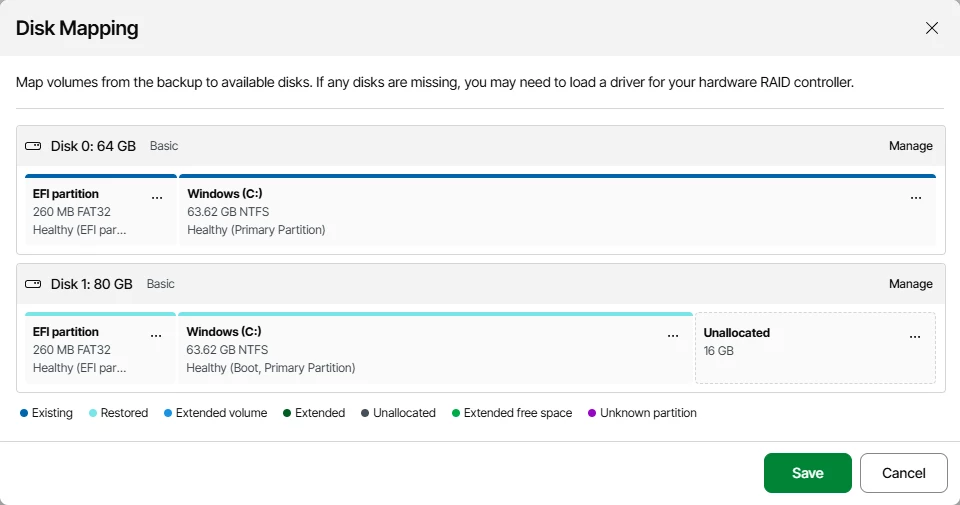
With two visible disks, this is a step where it pays to slow down. Accepting an automatic layout without checking it can restore to a different disk than intended.
The session finished with Success. Restoring 63.6 GB for the Windows volume took 54 seconds; the complete operation took 1 minute 41 seconds.
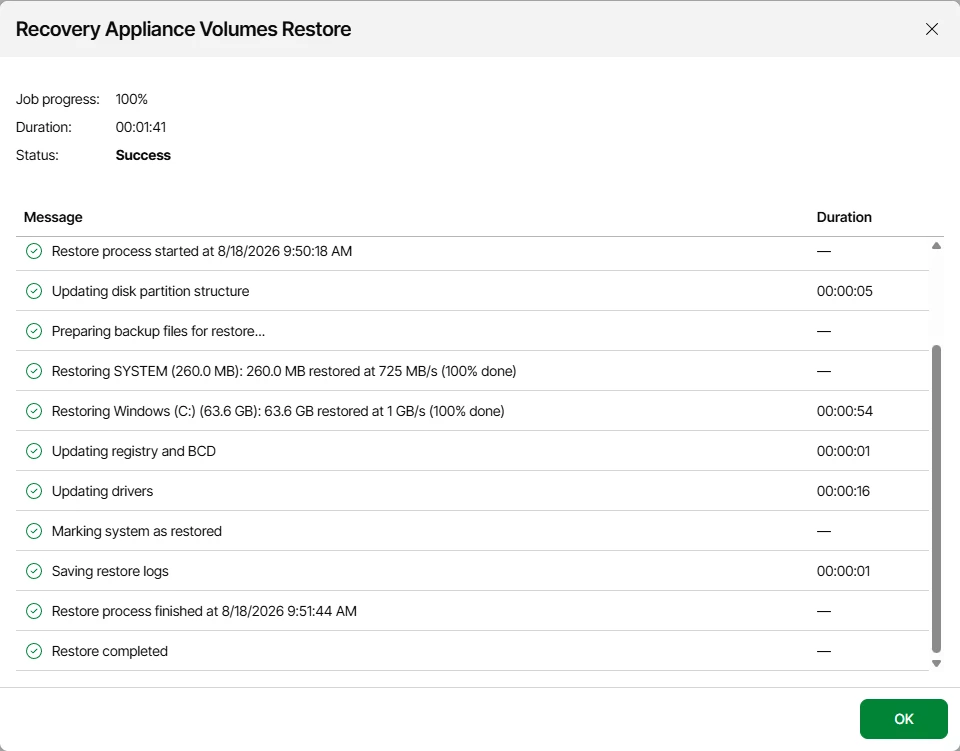
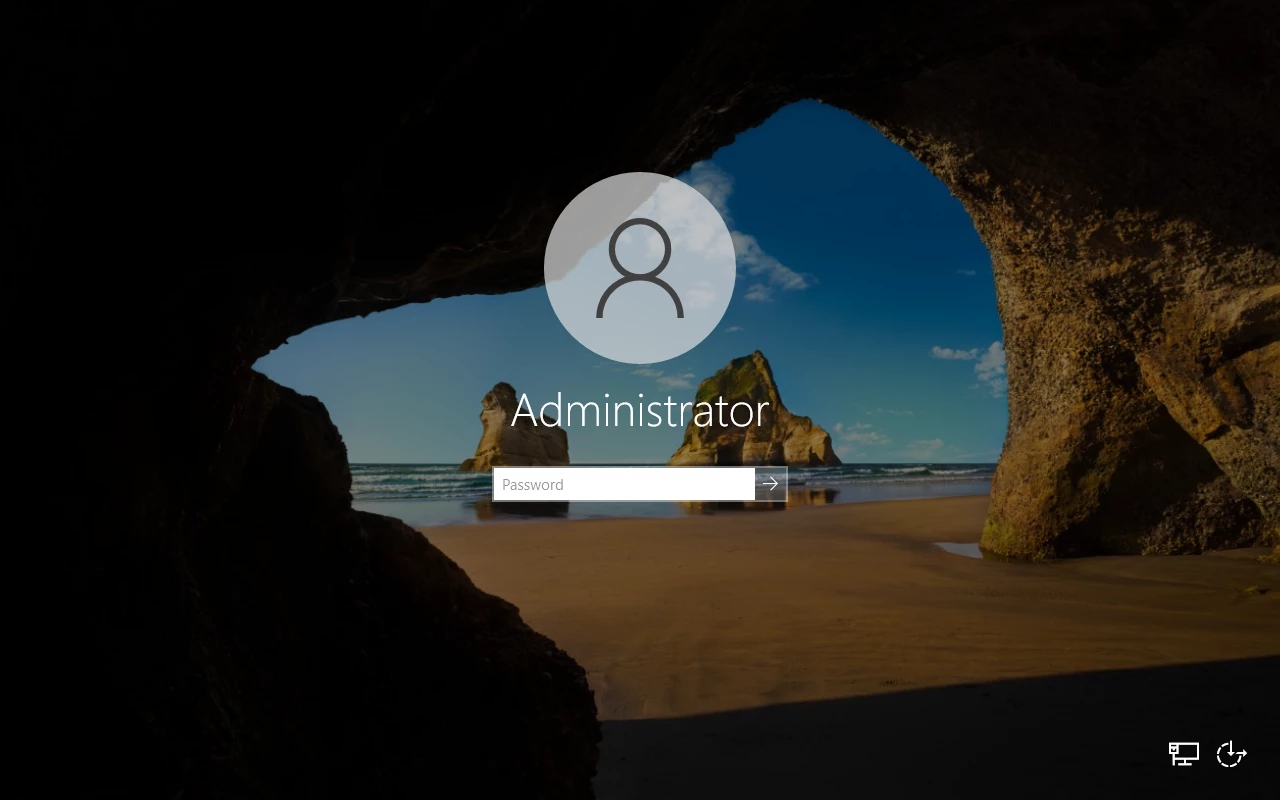
The first reboot reached the Windows sign-in screen, but the original disk was still attached and UEFI can boot from a different device than the configured order suggests. That result needed another check.
I disconnected the source disk without deleting its data and booted the machine again. Windows started, and an in-guest check confirmed that the 80 GB target was the system disk and C: was healthy. Only then did I consider the recovery test complete. I later reattached the source and restored the original lab configuration.
One earlier attempt stopped before data transfer because the recovery environment could not resolve the VBR endpoint. The cause was specific to my lab, but it changed my checklist: I now verify the FQDN and VBR access after booting the actual recovery environment. A laptop used for administration may follow a different network path.
My acceptance checklist
The runbook records both boot options: Virtual Recovery Partition for a typical operating system failure, and an ISO mounted through remote management or started from physical media after disk loss. I verify the Created state, boot the recovery environment and confirm network, storage, drivers and VBR registration.
I then test a mapping to an empty disk, perform a controlled restore, and boot without access to the source disk. After signing in, I also validate services and the application.
How are you using Remote BMR?
Are you already using Virtual Recovery Partition, or do your procedures still rely primarily on an ISO mounted through a remote management controller?
I am also interested in tests with several recovery appliances in one session and in results from physical servers with less common storage controllers and network adapters.
Most importantly, are you measuring only the restore operation, or the full time from incident report to a working application?
Sources
- What’s New - Agent-Based Protection
- Restoring from Veeam Recovery Media Remotely
- Creating Veeam Recovery Media Using Web UI
- Launching Bare Metal Recovery Wizard
- Specifying Volume Allocation
- Specifying Backup File Location - Veeam Agent for Microsoft Windows
- Before You Begin - Bare Metal Recovery
- Backup to Veeam Cloud Connect Repository
- Backing Up to Cloud Repositories - Veeam Agent for Microsoft Windows
- VBR 13.1 Release Notes

Veeam, backup and recovery engineer sharing lessons from implementations, testing and production operations.